Product
The main section of the product page: gallery and buy column. Every part – media, title, price, purchase options, description – is a block of its own; the section itself only has color scheme and spacing.
What it looks like
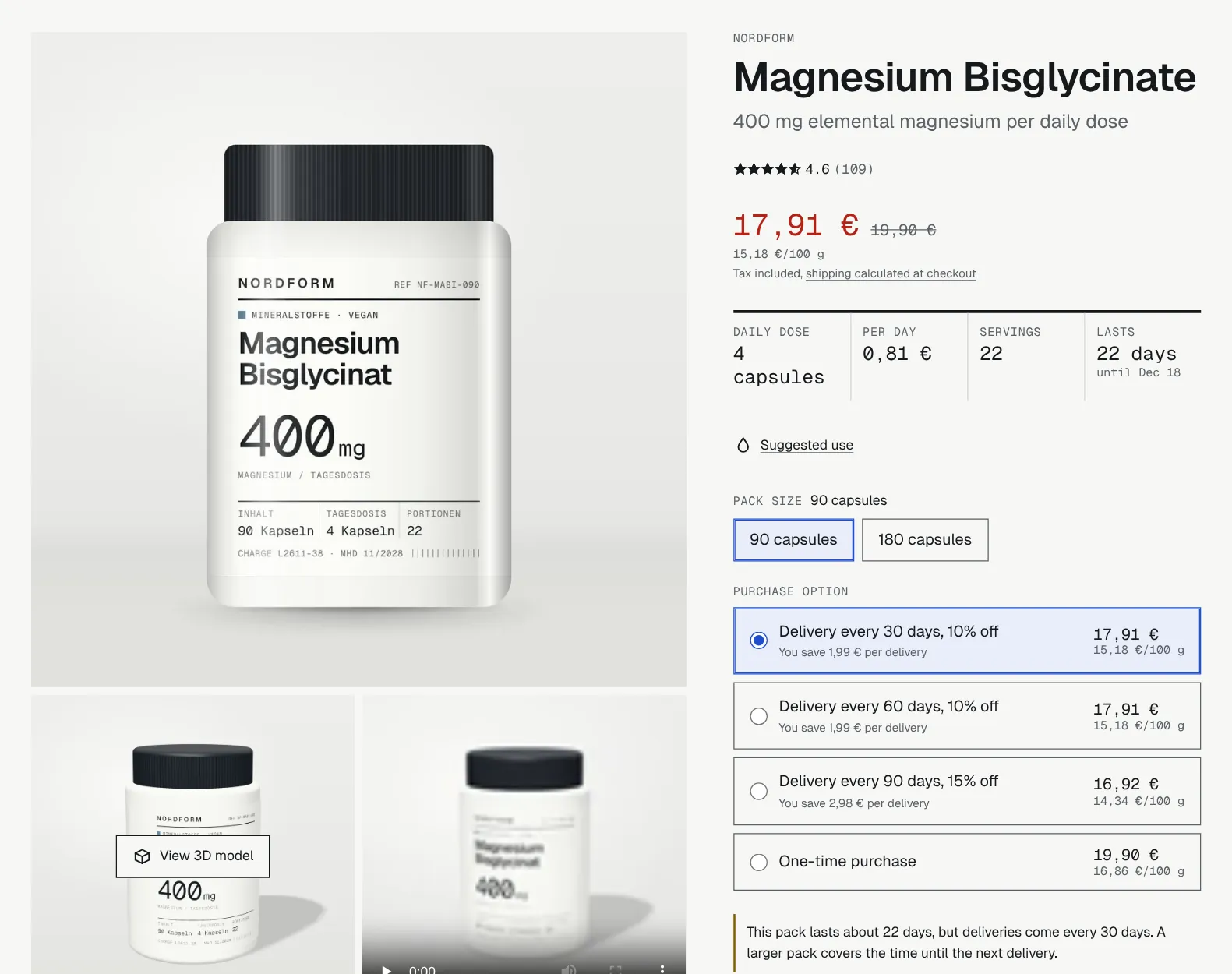
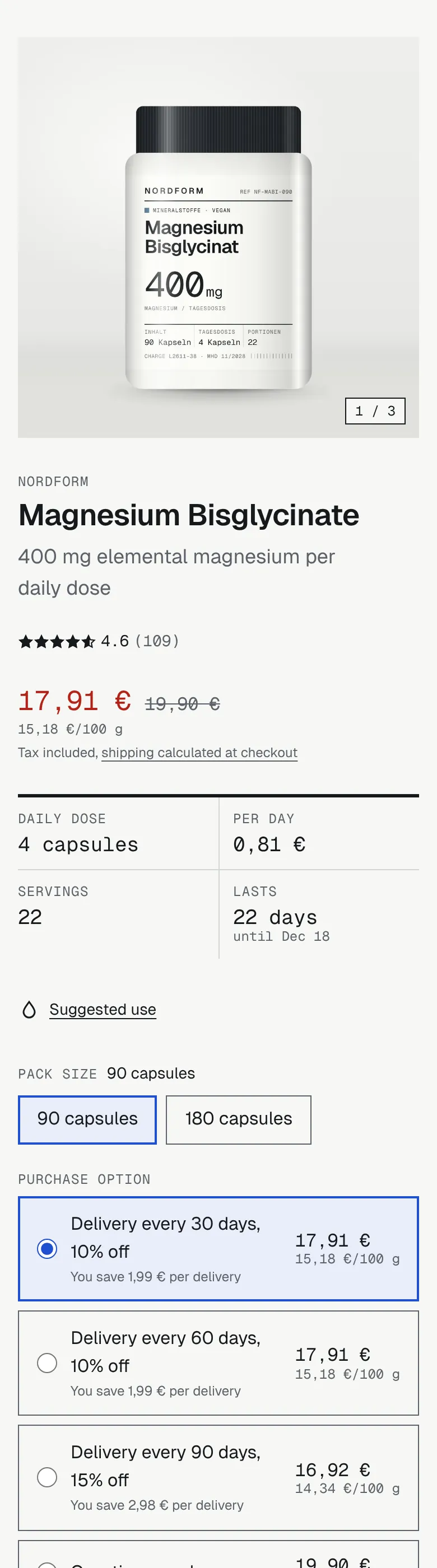 (Show larger)
Marked in the picture
The numbers in the computer picture show where each setting appears.
Example from the demo store Nordform.
Where do I find it?
- Online Store
- Themes
- Customize
- Choose the page at the top: “Products › Default product”
- “Template” area in the sidebar
- Product
This section is a fixed part of the “Product” template; it is not offered under “Add section”.
How to set it up
Product
Shown with default values. Fields that only appear after another setting is changed are folded away below.
Color scheme
Default: Scheme 1
Spacing above and below
Default: Small
3 options
- Small
- Medium
- Large
Can contain other blocks (for example heading, text, button).
- Marker 1 Product media (own block)
- Marker 2 Product title (own block)
- Marker 3 Price (own block)
- Marker 4 Purchase options (own block)
Tips
- The section is part of the
product,product.subscriptionandproduct.bundletemplates. When you add a block, the picker lists the matching product blocks first; everything else is under “Show all”. - Product blocks always show the product of the page. To show a different product on any page, use the Featured product block.
- Gallery and buy column sit side by side from tablet width (windows from about 765 px) and stacked on phones.