Price
The product’s price, compare-at price and unit price.
What it looks like
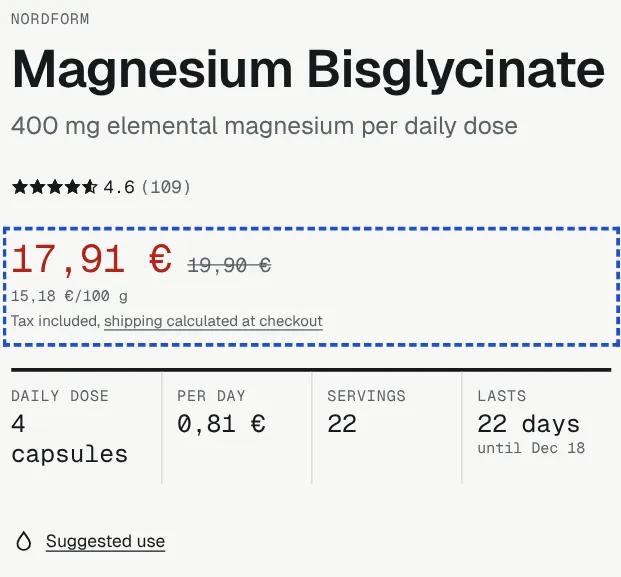
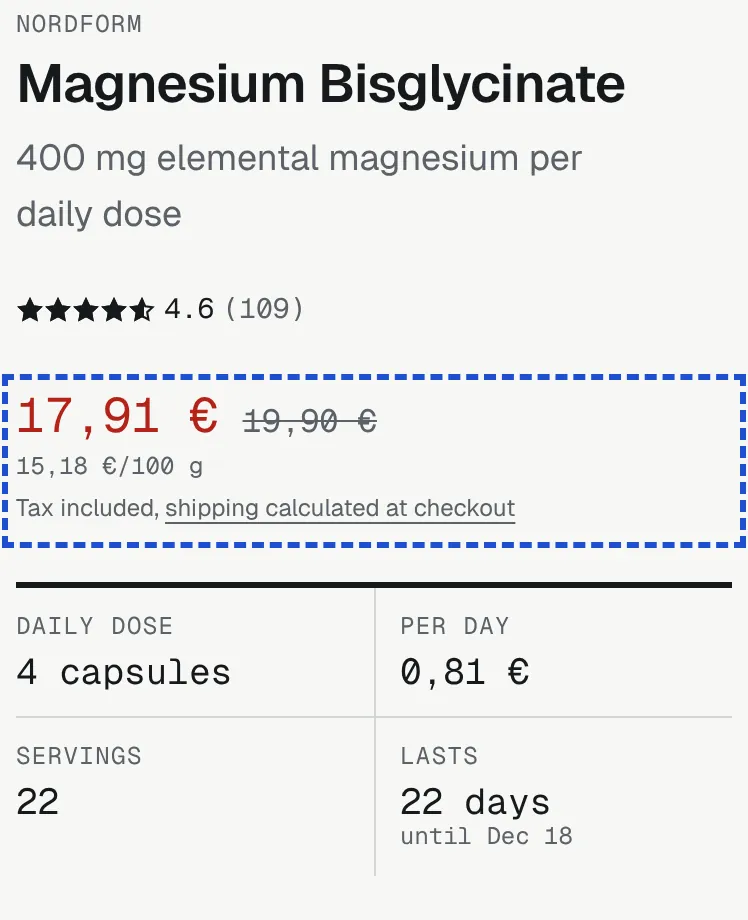 (Show larger)
Marked in the picture
The numbers in the computer picture show where each setting appears.
Example from the demo store Nordform.
Where do I find it?
- Online Store
- Themes
- Customize
- Choose the page at the top: “Products › Default product”
- Add block
- Product: buying
- Price
This block shows data of the current product and only works on product pages. For a product on other pages, use Featured product.
How to set it up
Price
Shown with default values. Fields that only appear after another setting is changed are folded away below.
Marker 1 Show tax and shipping note
Default: On
Show Shop Pay Installments
Default: On
Shopify’s banner below the price when Shop Pay Installments is active and the product is eligible.
Marker 2 Compare-at price color
Default: Custom color
7 options
- Same as theme setting
- Brand color: accent 1
- Brand color: accent 2
- Brand color: promotion / sale
- Brand color: highlight
- Brand color: success / seal
- Custom color
“Same as theme setting” follows Theme settings → Brand colors → Prices.
Custom color
Default: empty
Leave empty to use the theme setting “Compare-at price”.
Only shown when “Compare-at price color” is “Custom color”.
Tips
- Set the color of the compare-at price under Theme settings › Brand colors › Prices.