Featured product
One product with images, price and buy button on any page.
What it looks like
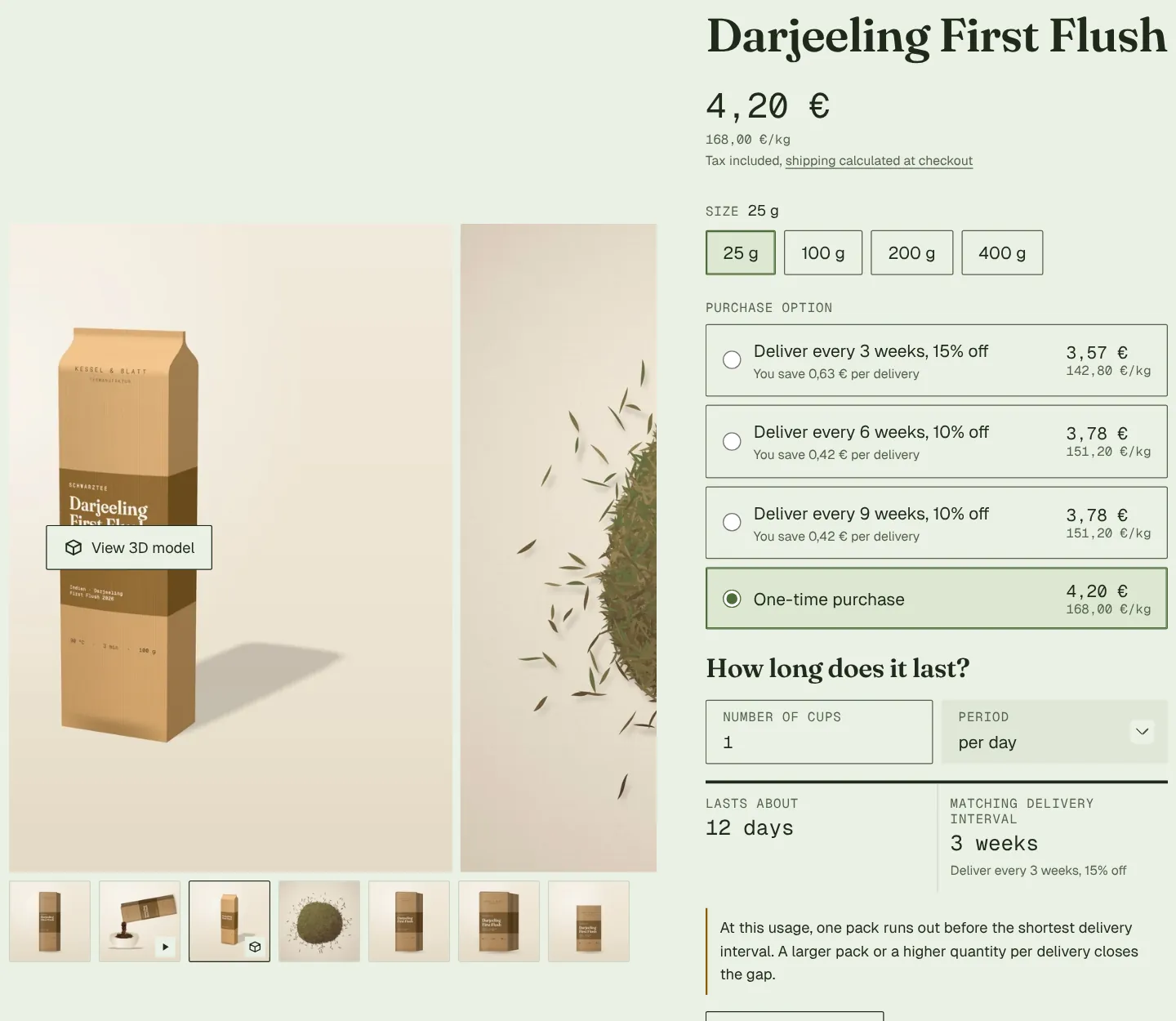
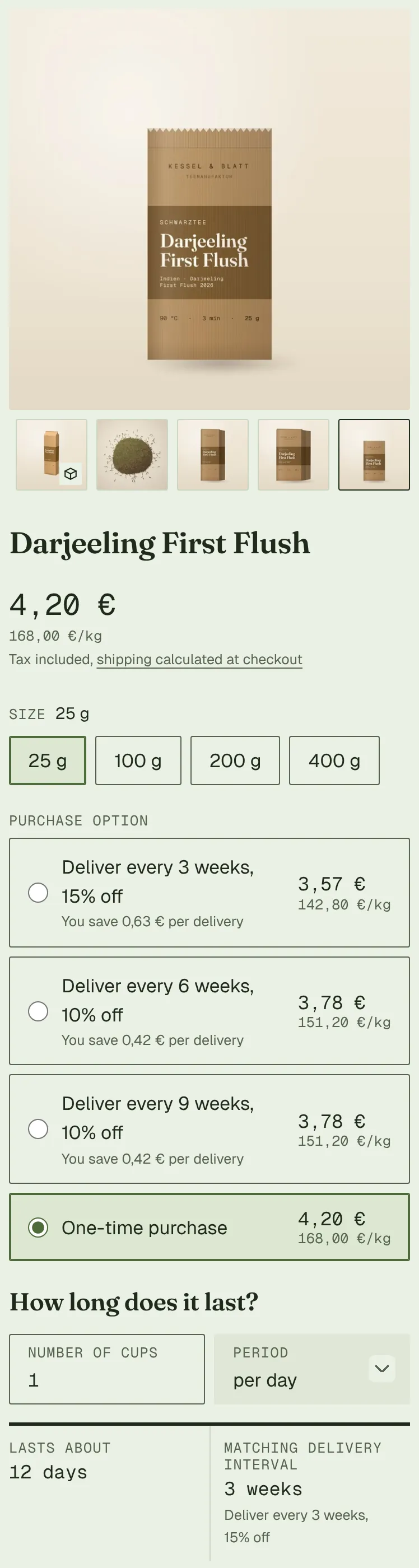 (Show larger)
Marked in the picture
The numbers in the computer picture show where each setting appears.
- 1 = Show gallery
- 2 = Show title
- 3 = Show price
- 4 = Show variant picker
- 5 = Show purchase options
Example from the demo store Kessel & Blatt.
Where do I find it?
- Online Store
- Themes
- Customize
- Choose the page at the top: “Home page”
- Add block
- Products and collections
- Featured product
How to set it up
Featured product
Shown with default values. Fields that only appear after another setting is changed are folded away below.
Product
All parts of this block show the selected product. App blocks appear below the buy buttons.
Content
Marker 1 Show gallery
Load immediately (image at the top of the page)
Turn on only for the first large image on the page.
Only shown when “Show gallery” is on.
Marker 2 Show title
Marker 3 Show price
Marker 4 Show variant picker
Style
3 options
- Tiles
- Rows
- Images (variant images)
Only shown when “Show variant picker” is on.
Marker 5 Show purchase options
Show supply calculator
Like the “Supply calculator” block, with the subscription interval of this block’s purchase options. Needs “Servings per pack”.
Show buy buttons
Show dynamic checkout buttons
e.g. PayPal, Apple Pay, Shop Pay. Hidden for products with subscriptions.
Only shown when “Show buy buttons” is on.
Show “View details” link
Can contain other blocks (for example heading, text, button).
Tips
- Each part can be turned off on its own, e.g. the purchase options.
- Only turn on “Load immediately” if the block is at the very top of the page.