Popup
A window above the page, for example for the newsletter or a promotion. It appears after a delay and at most once in the set period; you build its content from blocks such as heading, text and newsletter.
What it looks like
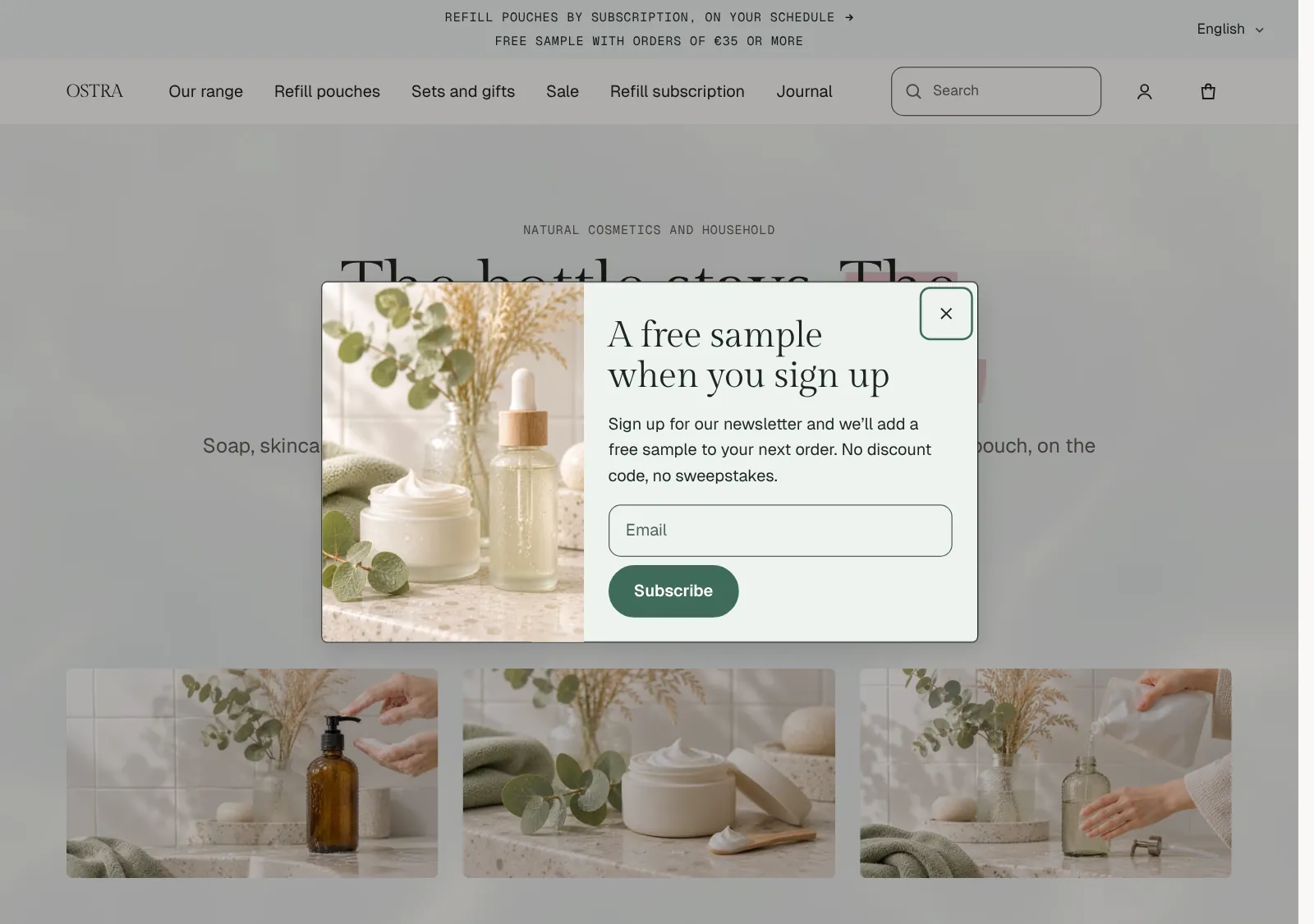
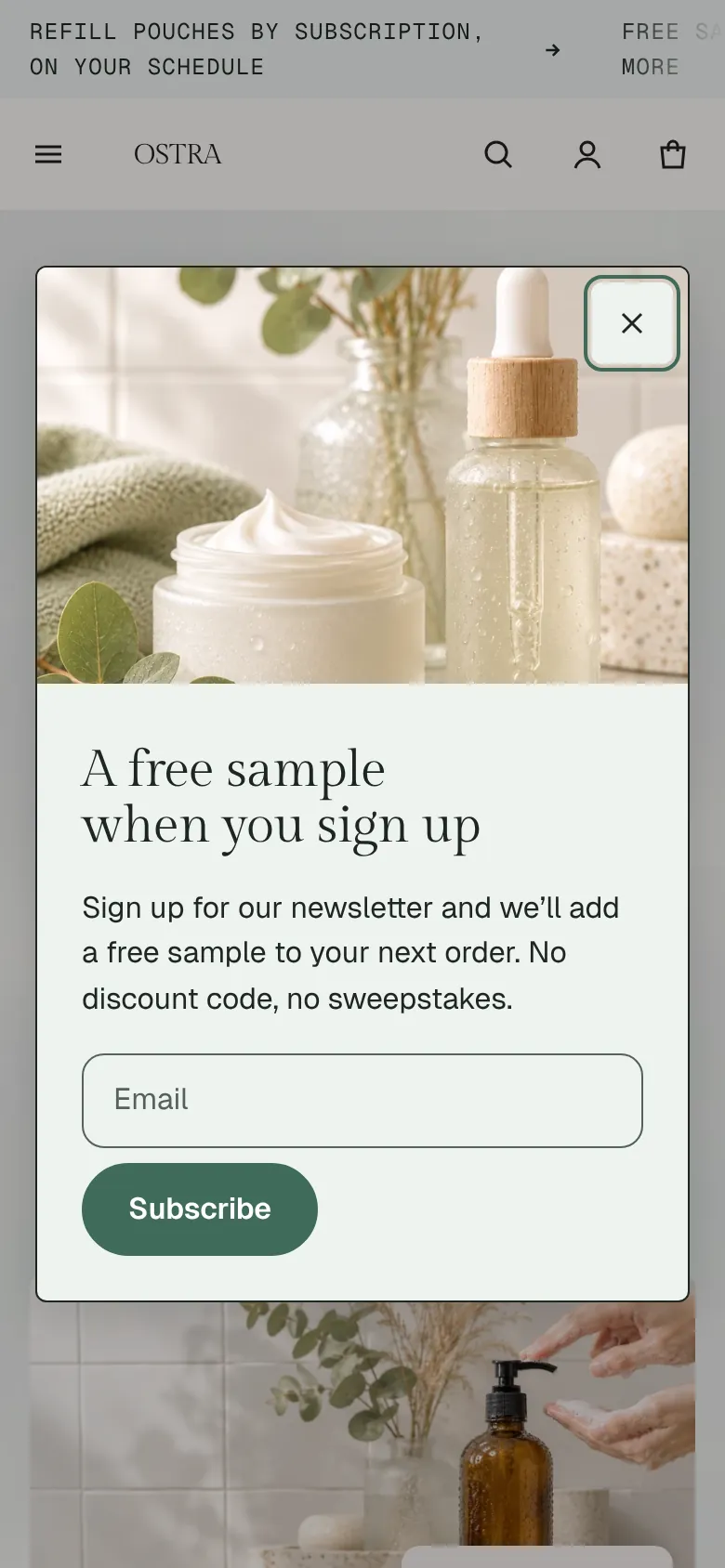 (Show larger)
Marked in the picture
The numbers in the computer picture show where each setting appears.
- 1 = Image
- 2 = Heading (own block)
- 3 = Newsletter signup (own block)
Example from the demo store OSTRA.
Where do I find it?
- Online Store
- Themes
- Customize
- “Footer” area in the sidebar
- Popup
The popup belongs in the “Footer” area. If it's missing, add it there with “Add section”.
How to set it up
Popup
Shown with default values. Fields that only appear after another setting is changed are folded away below.
If the popup promises a discount, create the matching discount code yourself under Discounts.
Marker 1 Image
Display timing
Show on
2 options
- All pages (except cart)
- Home page only
Delay
At most every … days
After closing, the popup returns in this browser only after this time, and never after a newsletter signup.
Design
Color scheme
Can contain other blocks (for example heading, text, button).
- Marker 2 Heading (own block)
- Marker 3 Newsletter signup (own block)
Tips
- The popup never appears on the cart and password pages, and after a newsletter signup never again in that browser. Use a private browser window to test.
- If the popup promises a discount, create the discount code yourself under Discounts.
- To turn it off, hide the “Popup” section in the footer group with the eye icon. In the editor, the preview opens the popup as soon as you click it in the sidebar.