Heading
A heading, optionally with a small eyebrow line above it.
What it looks like
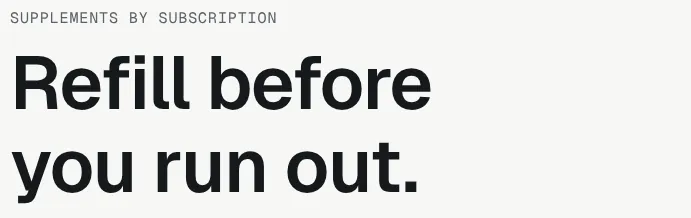
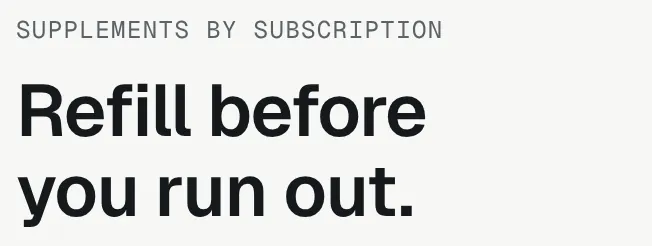 (Show larger)
Marked in the picture
The numbers in the computer picture show where each setting appears.
- 1 = Heading
Example from the demo store Nordform.
Where do I find it?
- Online Store
- Themes
- Customize
- Choose the page at the top: “Home page”
- Add block
- Text
- Heading
How to set it up
Heading
Shown with default values. Fields that only appear after another setting is changed are folded away below.
Eyebrow text
empty
Text in double square brackets is highlighted, e.g. [[refill]].
Marker 1 Heading
Default: Heading
Text in double square brackets is highlighted, e.g. [[refill]].
Size
Default: Medium
4 options
- Small
- Medium
- Large
- Extra large
Heading level (SEO)
Default: H2 – Section
4 options
- H1 – Page title
- H2 – Section
- H3 – Subsection
- Normal text
Use one H1 per page. Levels structure the page for screen readers and search engines.
Match group alignment
Default: On
Uses the alignment of the group or section. Turn off to choose an alignment of its own. Learn more
More fields when “Match group alignment” is off (1)
Alignment
Default: Left
Tips
- Use only one heading with level H1 per page.
- Words in double square brackets are highlighted, e.g. [[refill]].