Buy buttons
Quantity and “Add to cart”, plus quick payment buttons such as PayPal or Apple Pay.
What it looks like
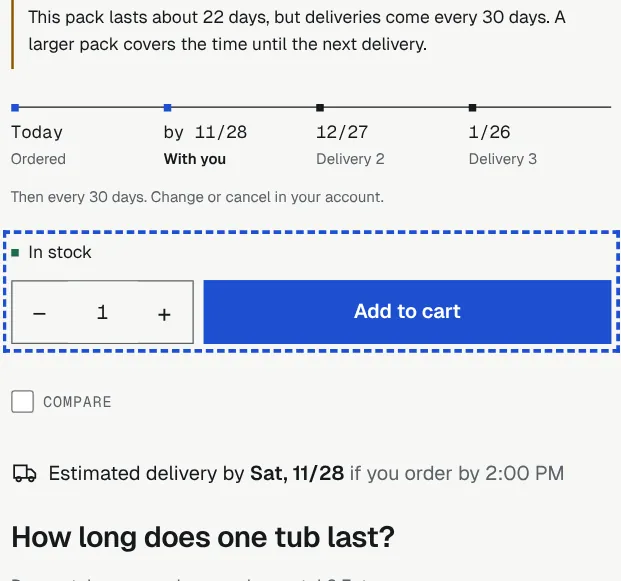
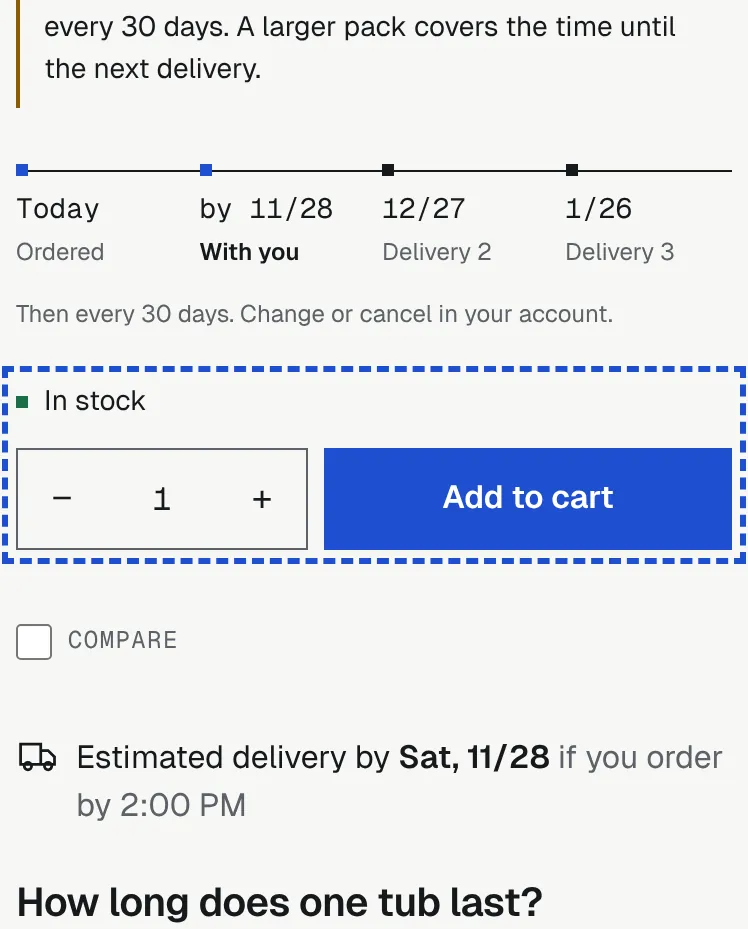 (Show larger)
Marked in the picture
The numbers in the computer picture show where each setting appears.
- 1 = Show quantity
- 2 = Show stock status
Example from the demo store Nordform.
Where do I find it?
- Online Store
- Themes
- Customize
- Choose the page at the top: “Products › Default product”
- Add block
- Product: buying
- Buy buttons
This block shows data of the current product and only works on product pages. For a product on other pages, use Featured product.
How to set it up
Buy buttons
Shown with default values. Fields that only appear after another setting is changed are folded away below.
Marker 1 Show quantity
Show dynamic checkout buttons
e.g. PayPal, Apple Pay, Shop Pay. Hidden for products with subscriptions.
Style of the “Buy it now” button
3 options
- Outline (like secondary buttons)
- Filled (like primary buttons)
- Shopify default
Applies to the button without a brand logo. Branded buttons (Shop Pay, PayPal, Apple Pay, Google Pay) only take the theme's corners and height; their colors and hover are set by the provider.
Only shown when “Show dynamic checkout buttons” is on.
Stock and availability
Marker 2 Show stock status
Show back-in-stock request
For sold-out variants: sends you an email via the contact form with product, variant and the customer's address.
Advanced
Metafield: expected ship date (pre-order)
Shown when a variant is sold out but can still be ordered (continue selling). Variant or product metafield in the format namespace.key (Settings → Custom data).
Tips
- Quick payment buttons are hidden for products with a subscription.
- “Show back-in-stock request”: for sold-out variants you get an email with the customer’s address.