Scroll story
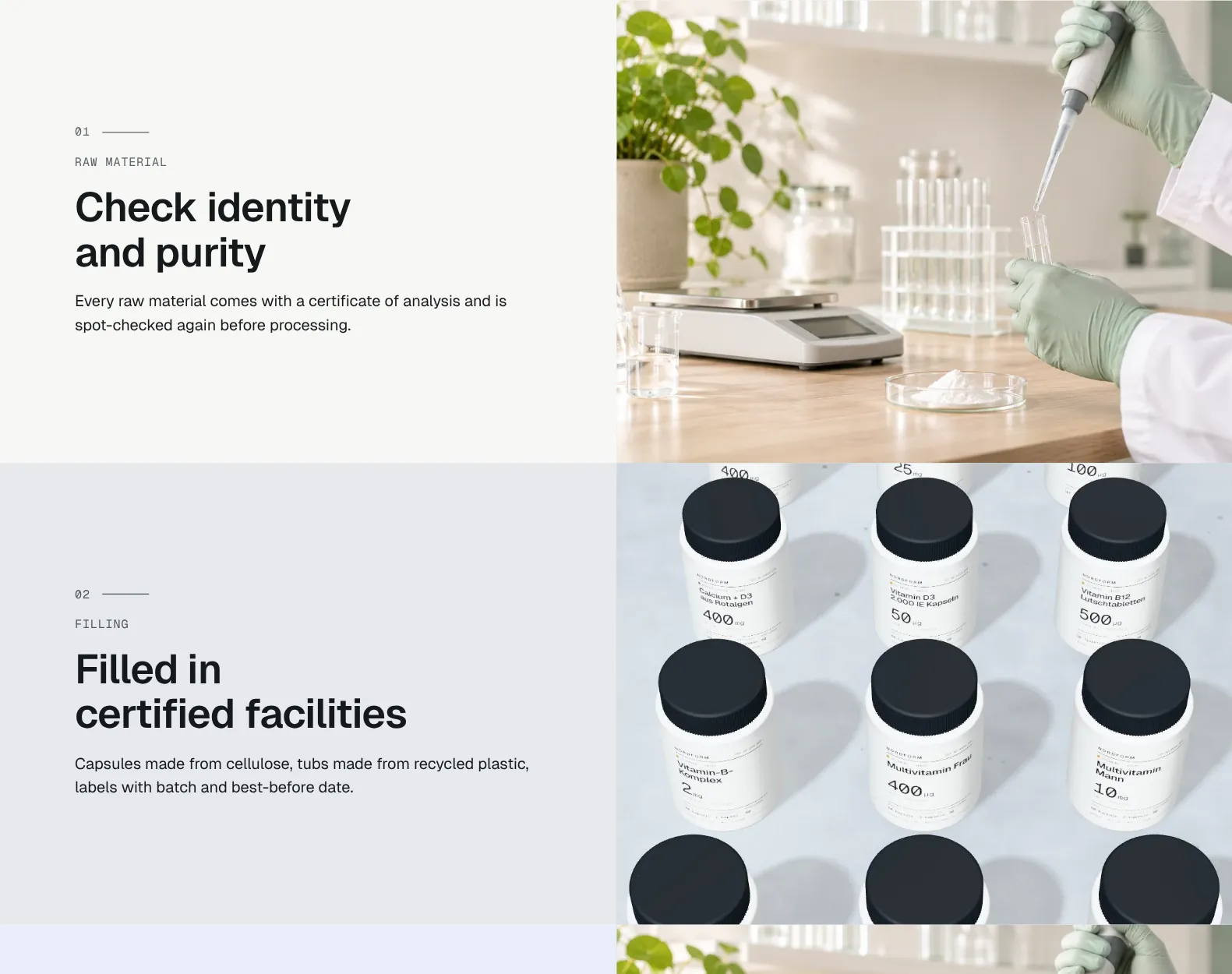
Slides that blend into each other as you scroll: the current slide stays in place while the next one fades in over it. Good for origin, production or “How the subscription works”.
What it looks like
 (Show larger)
Marked in the picture
The numbers in the computer picture show where each setting appears.
- 1 = Slide: Label
- 2 = Slide: Heading
- 3 = Slide: Image
- 4 = Number slides (01, 02 …)
Example from the demo store Nordform.
Where do I find it?
- Online Store
- Themes
- Customize
- Choose the page at the top: “Pages › Default page”
- “Template” area in the sidebar
- Add section
- Media
- Scroll story
How to set it up
Scroll story
Shown with default values. Fields that only appear after another setting is changed are folded away below.
Slides blend into each other while scrolling; image and text stay in place. Keep texts short: each slide fills the screen. With reduced motion the slides are stacked.
Animation
Transition
3 options
- Crossfade
- Crossfade with image zoom
- Image slides in
Only shown when “Enable animations” is on.
Slide change
2 options
- All at once (recommended)
- With scrolling
All at once: the next slide appears in full as soon as it reaches the top – no half-finished states. With scrolling: image and text blend continuously as you scroll (browsers without scroll animations always change all at once).
Only shown when “Enable animations” is on.
Scroll distance per slide
3 options
- Short
- Medium
- Long
How far visitors scroll until the next slide is fully shown.
Only shown when “Enable animations” is on.
Snap to slides
After scrolling, the page stops on the nearest full slide.
Only shown when “Enable animations” is on.
Up and down arrows
Jump straight to the previous or next slide.
Only shown when “Enable animations” is on.
Animations are turned off (Theme settings › Animation): slides are stacked, transition and scroll distance do not apply.
Design
Image (desktop)
3 options
- First
- Last
- Alternating
Marker 4 Number slides (01, 02 …)
Blocks in this section:
“Slide” block
One slide: image, small heading, heading, text, optionally a button and a color scheme of its own. A slide without an image becomes a full-width text slide.
Slide
Shown with default values. Fields that only appear after another setting is changed are folded away below.
Marker 3 Image
Marker 1 Label
Text in double square brackets is highlighted, e.g. [[refill]].
Marker 2 Heading
Text in double square brackets is highlighted, e.g. [[refill]].
Heading level (SEO)
4 options
- H2 – Section
- H3 – Subsection
- H4 – Minor subsection
- Normal text
Only shown when “Heading” is filled in.
Text
Text in double square brackets is highlighted, e.g. [[refill]].
Button
Label
Design
Color scheme
More fields when “Image” is filled in (1)
Load image immediately
Only for the first slide when the scroll story is at the very top of the page.
Tips
- Up to six slides and short texts – one statement per slide. Each slide fills the screen; on phones the text sits below the image.
- If the scroll story is at the very top of the page, turn on “Load image immediately” for the first slide (shown once an image is chosen).
- The “Animation” group only appears when “Enable animations” is on under Theme settings → “Animation”. If it's off or reduced motion is set, the slides are stacked.