Product recommendations
Products that go with the product of the page – below the buy column on the product page. You choose related or complementary products, number, columns and what the product cards show.
What it looks like
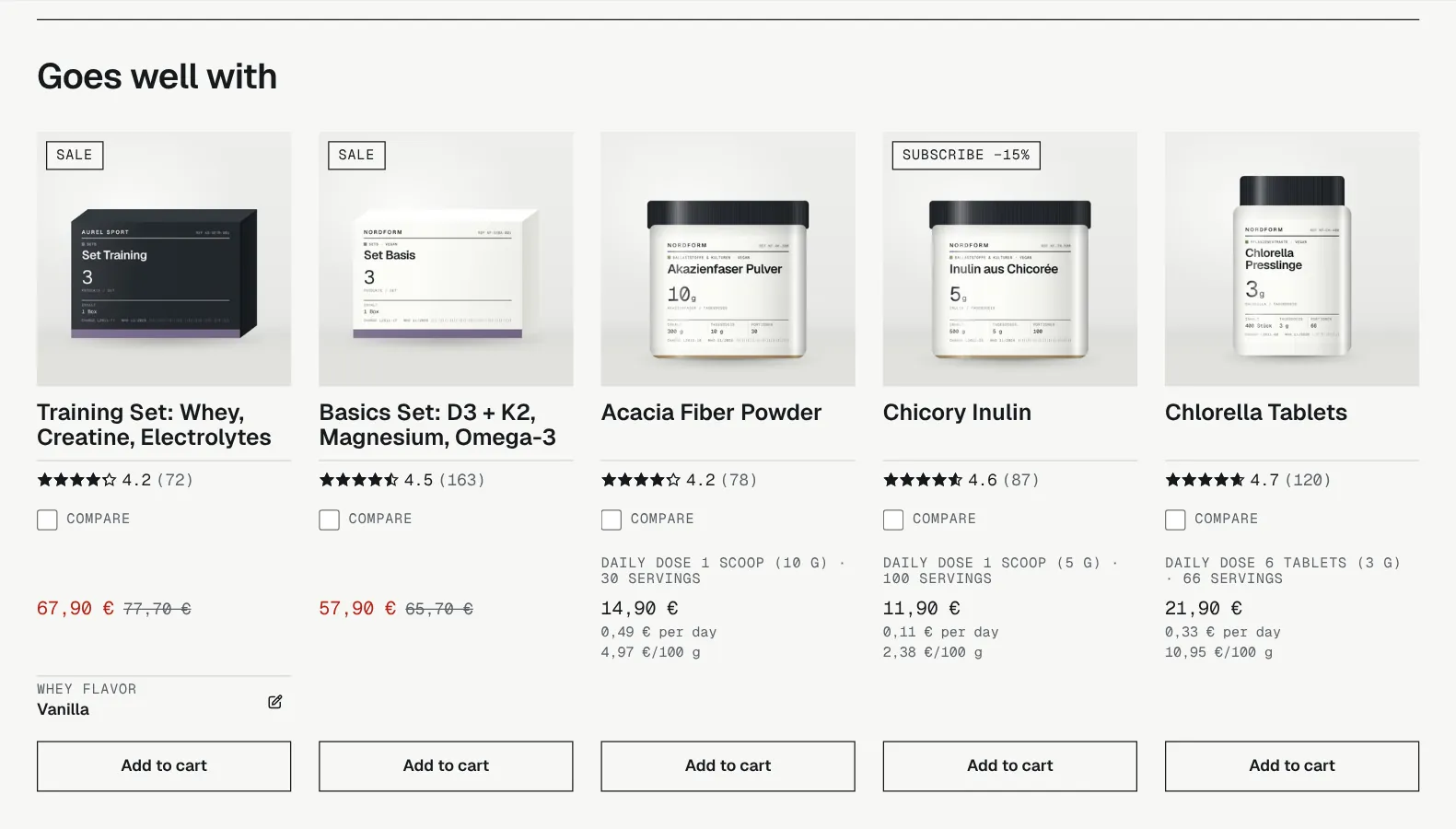
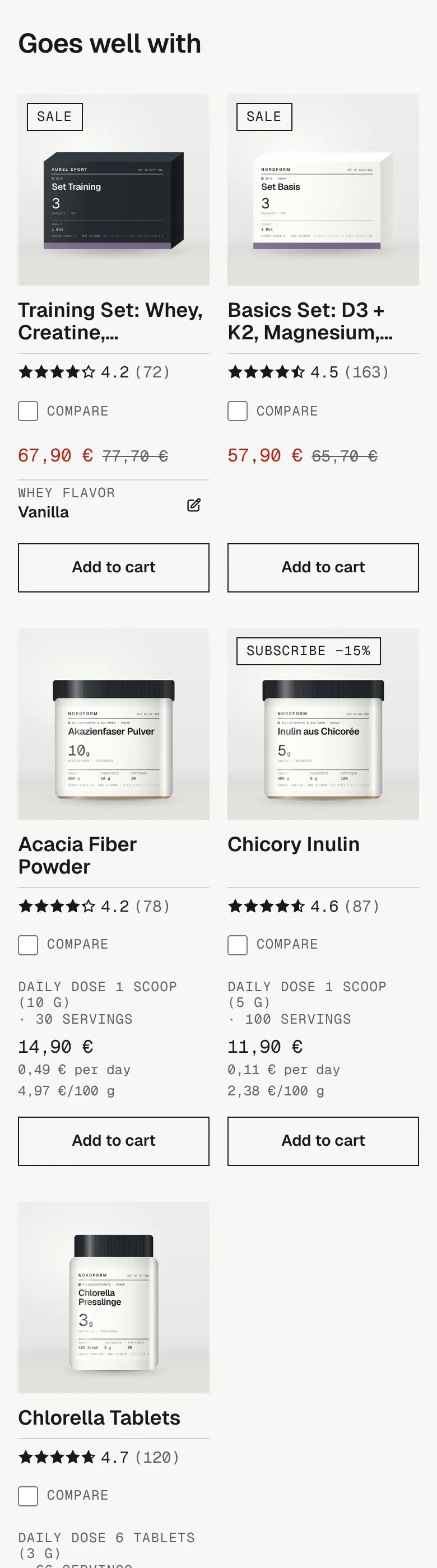 (Show larger)
Marked in the picture
The numbers in the computer picture show where each setting appears.
- 1 = Heading
- 2 = Columns on large screens
Example from the demo store Nordform.
Where do I find it?
- Online Store
- Themes
- Customize
- Choose the page at the top: “Products › Default product”
- “Template” area in the sidebar
- Add section
- Products and collections
- Product recommendations
Only available on “Product” pages.
How to set it up
Product recommendations
Shown with default values. Fields that only appear after another setting is changed are folded away below.
Marker 1 Heading
Text in double square brackets is highlighted, e.g. [[refill]].
Recommendation type
2 options
- Similar products
- Complementary products
Complementary products are set up in the Search & Discovery app.
Number of products
Appearance
Marker 2 Columns on large screens
Show unit price
Price per unit of measure, e.g. €16.86/100 g. Usually required in the EU for goods sold by weight, volume or length: only turn off if it isn’t needed here.
Color scheme
Spacing above and below
4 options
- None
- Small
- Medium
- Large
Width
2 options
- Page width
- Full width
Line above section
More fields when “Show profile scales on product cards” is on (1)
Appearance
Show profile scales (e.g. scent, texture)
Only when “Show profile scales on product cards” is on in theme settings.
More fields when ““Compare” checkbox on product cards” is on (1)
Appearance
Show “Compare” checkbox
Only when the “Compare” checkbox is on in theme settings (product cards).
Tips
- “Recommendation type”: related or complementary products. You set up complementary products in the Search & Discovery app.
- Like every section, “Product recommendations” has “Color scheme”, “Spacing above and below”, “Width” and “Line above section”.
- Only turn off the unit price where it isn't needed: in the EU it is usually mandatory for goods sold by weight, volume or length.