Announcement bar
The bar above the header for short notices. Each “Announcement” block is one line – with an optional link and an optional discount code to copy.
What it looks like

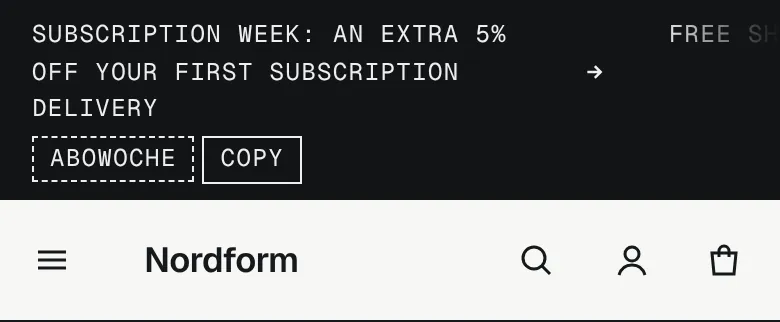 (Show larger)
Marked in the picture
The numbers in the computer picture show where each setting appears.
Example from the demo store Nordform.
Where do I find it?
- Online Store
- Themes
- Customize
- “Header” area in the sidebar
- Announcement bar
How to set it up
Announcement bar
Shown with default values. Fields that only appear after another setting is changed are folded away below.
“Announcement” block
One line of the bar: text, link and discount code.
Announcement
Shown with default values. Fields that only appear after another setting is changed are folded away below.
Marker 1 Text
Default: Free shipping on qualifying orders
Text in double square brackets is highlighted, e.g. [[refill]].
Link
Paste a link or search
Marker 2 Discount code
empty
Shown with a “Copy” button. Create the discount under Discounts; customers redeem it at checkout.
Tips
- Discount code: first create it under Discounts → Create discount, then enter exactly the same code in the block. The theme only displays and copies the code; whether it applies is up to the discount in Shopify.
- Several announcements form a swipeable bar on phones; on desktop they wrap onto a second line when they don't fit side by side.
- Adjust texts such as “Free shipping over €49” to your actual terms, or delete the block.