Quick order list
A list for ordering many products quickly, e.g. for business customers.
What it looks like
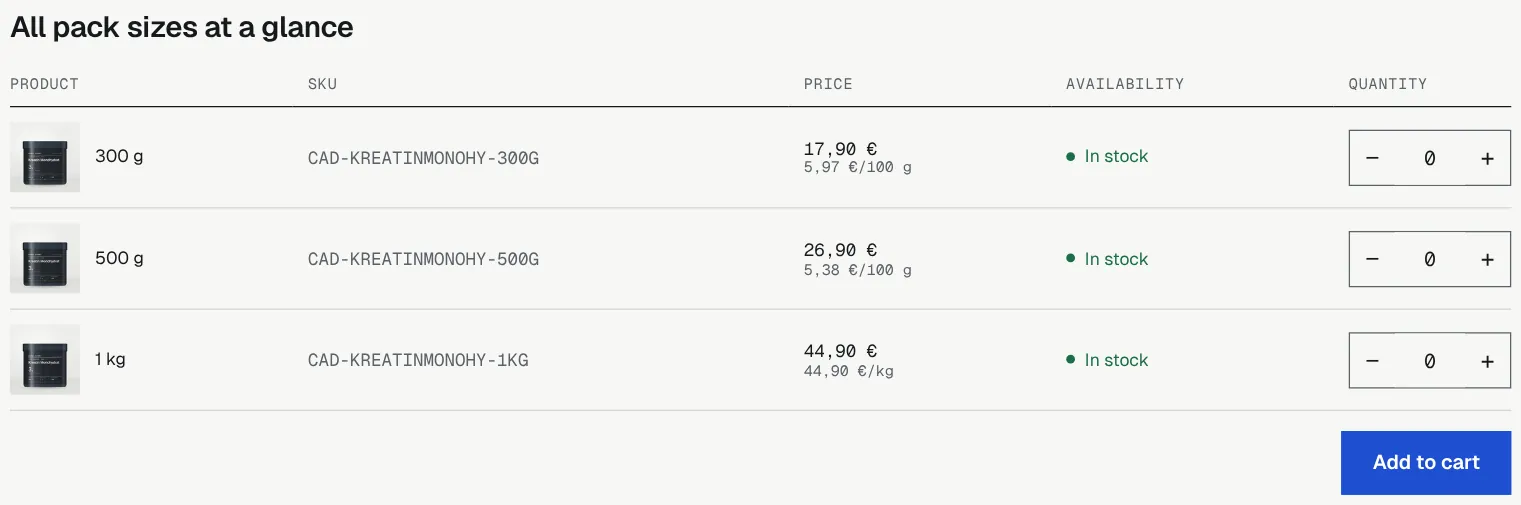
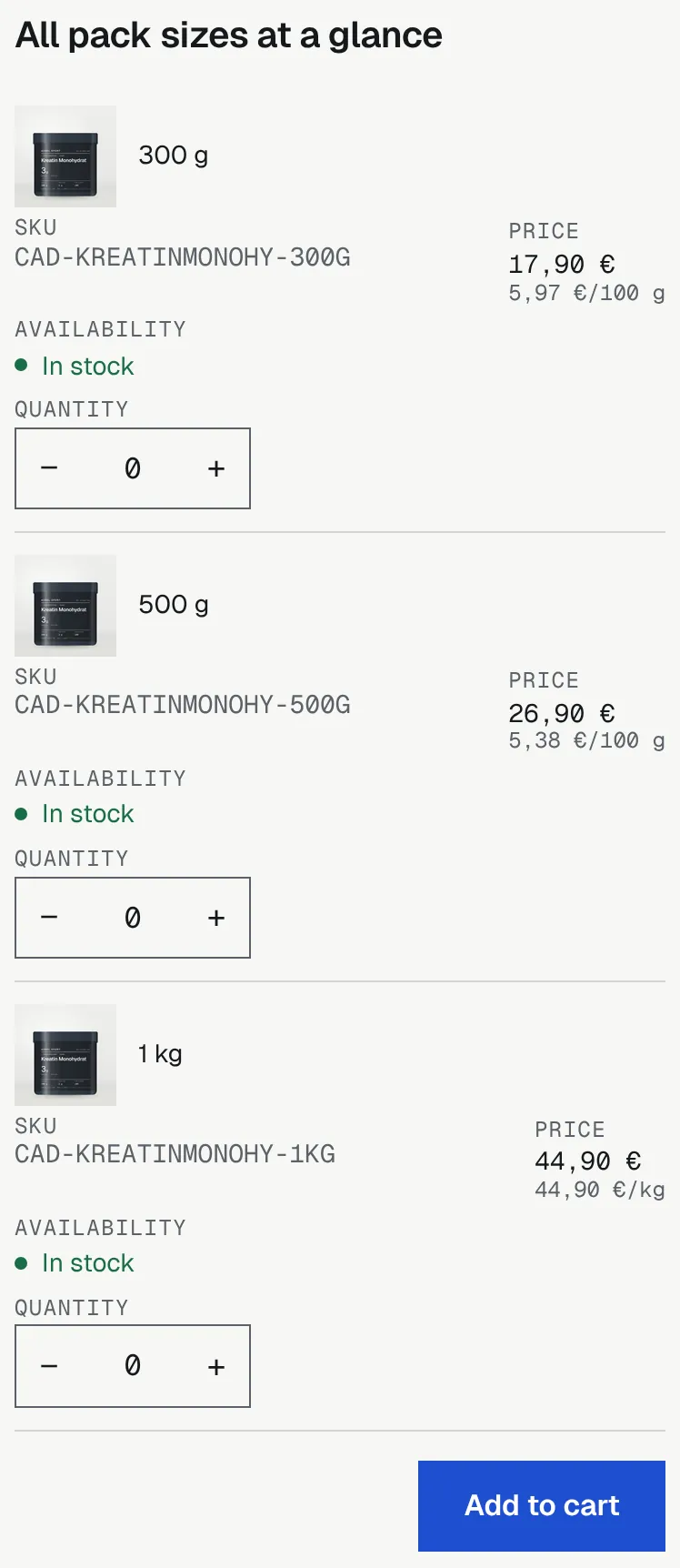 (Show larger)
Marked in the picture
The numbers in the computer picture show where each setting appears.
- 1 = Heading
Example from the demo store Nordform.
Where do I find it?
- Online Store
- Themes
- Customize
- Choose the page at the top: “Products › Default product”
- Add block
- Products and collections
- Quick order list
How to set it up
Quick order list
Shown with default values. Fields that only appear after another setting is changed are folded away below.
Table of all variants with SKU, price, availability and a quantity field each. One button adds all quantities to the cart.
Marker 1 Heading
empty
Text in double square brackets is highlighted, e.g. [[refill]].
Heading level (SEO)
Default: H2 – Section
3 options
- H1 – Page title
- H2 – Section
- H3 – Subsection
Products
Default: Variants of the current product
2 options
- Variants of the current product
- Products of a collection
Collection
Select collection
Show images
Default: On
Show SKU
Default: On
More fields when “Products” is “Products of a collection” (2)
Products per page
Default: 20
Paste order list
Default: Off
Customers paste lines like “SKU; quantity”. Matched against the SKUs of the first 50 products of the collection (up to 500 SKUs).
Tips
- With “Paste order list”, customers paste lines such as “SKU; quantity”.