Products from collection
Product cards from a collection as a grid, e.g. “Bestsellers” on the home page.
What it looks like
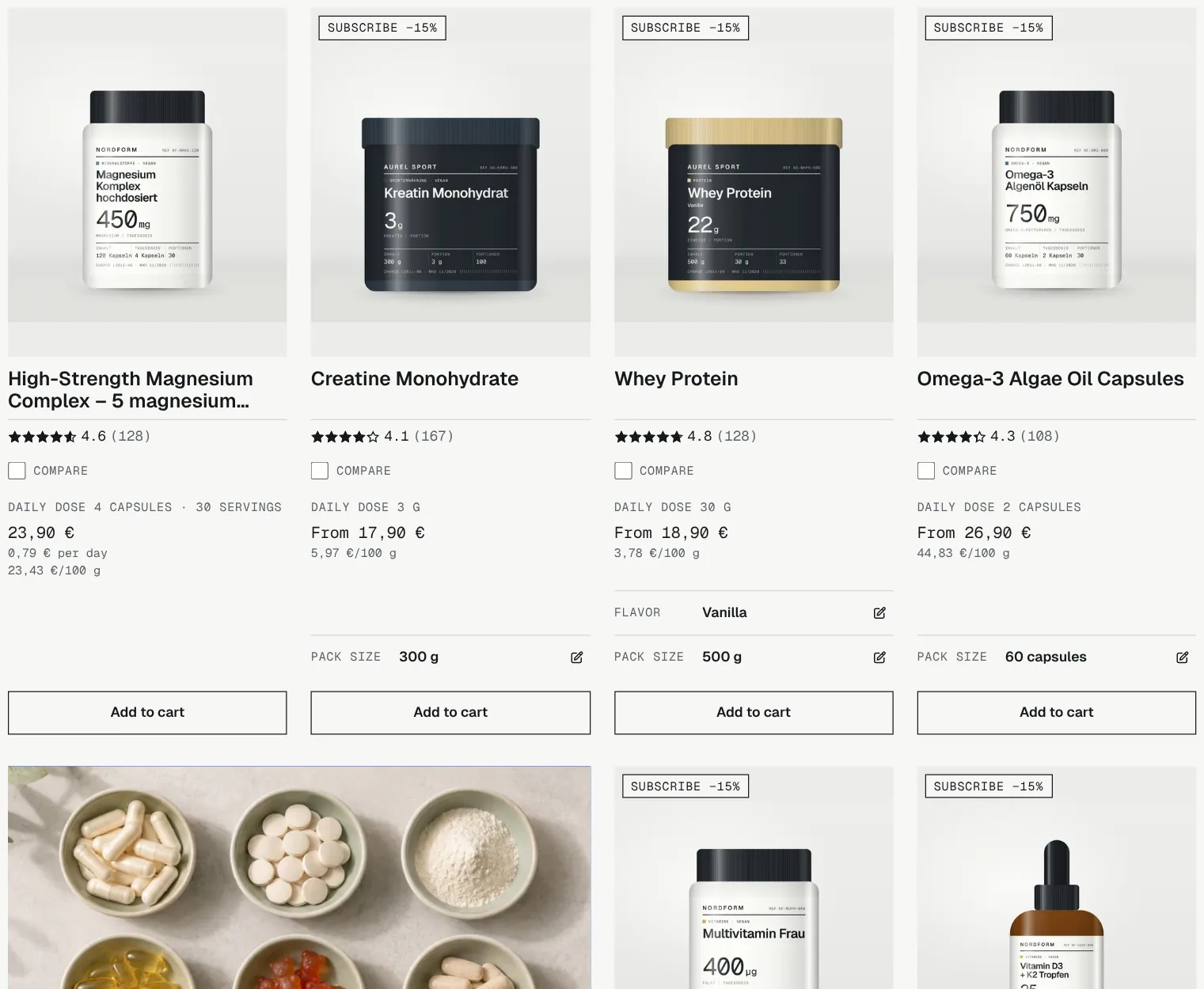
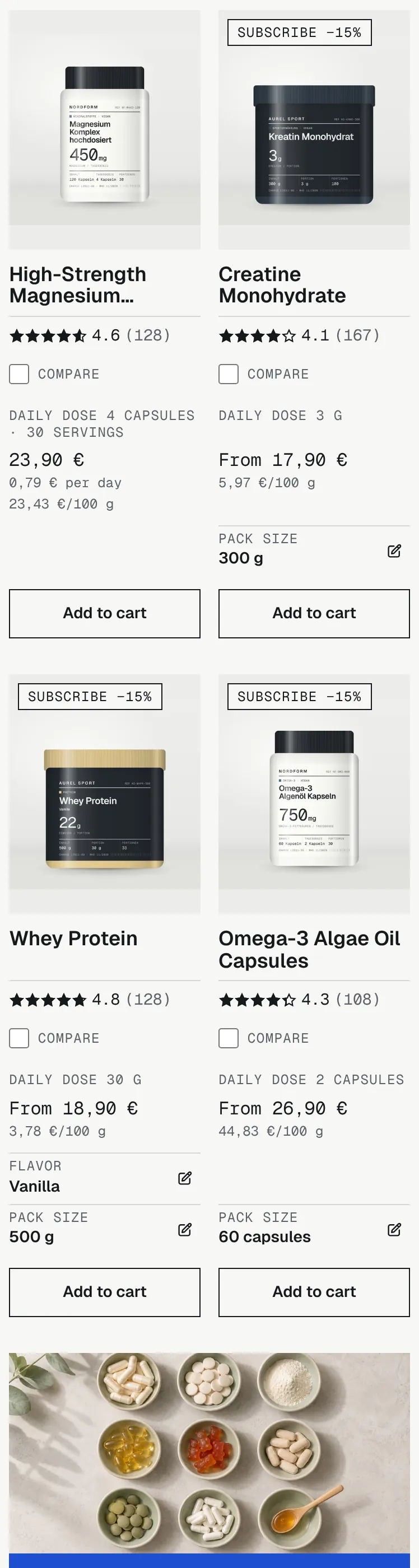 (Show larger)
Marked in the picture
The numbers in the computer picture show where each setting appears.
- 1 = Collection
Example from the demo store Nordform.
Where do I find it?
- Online Store
- Themes
- Customize
- Choose the page at the top: “Home page”
- Add block
- Products and collections
- Products from collection
How to set it up
Products from collection
Shown with default values. Fields that only appear after another setting is changed are folded away below.
Content
Marker 1 Collection
Number of products
Appearance
Columns on large screens
Columns on small screens
2 options
- 1
- 2
Image aspect ratio
3 options
- 1 : 1
- 4 : 5
- 9 : 16
Image fit
2 options
- Fill frame (crop)
- Show whole image
“Show whole image” suits cut-out product images; photos with their own background otherwise show bars when the aspect ratio differs.
Show key figures (serving, servings)
Uses the metafields set in theme settings → Product data. Price per day has its own switch.
Only shown when “Metafield: amount per serving” is filled in or “Metafield: servings per pack” is filled in.
Show price per day or serving
Only for products with a single price and a servings metafield.
Only shown when “Metafield: servings per pack” is filled in.
Show unit price
Price per unit of measure, e.g. €16.86/100 g. Usually required in the EU for goods sold by weight, volume or length: only turn off if it isn’t needed here.
More fields when “Show profile scales on product cards” is on (1)
Appearance
Show profile scales (e.g. scent, texture)
Only when “Show profile scales on product cards” is on in theme settings.
More fields when ““Compare” checkbox on product cards” is on (1)
Appearance
Show “Compare” checkbox
Only when the “Compare” checkbox is on in theme settings (product cards).
Can contain other blocks (for example heading, text, button).
Tips
- Use the “Promo tile” sub-block to add a promotion tile to the grid.
- “Show unit price” is usually required in the EU for goods sold by weight or volume. Leave it on.