Origin map
A map with dots showing where your raw materials come from.
What it looks like
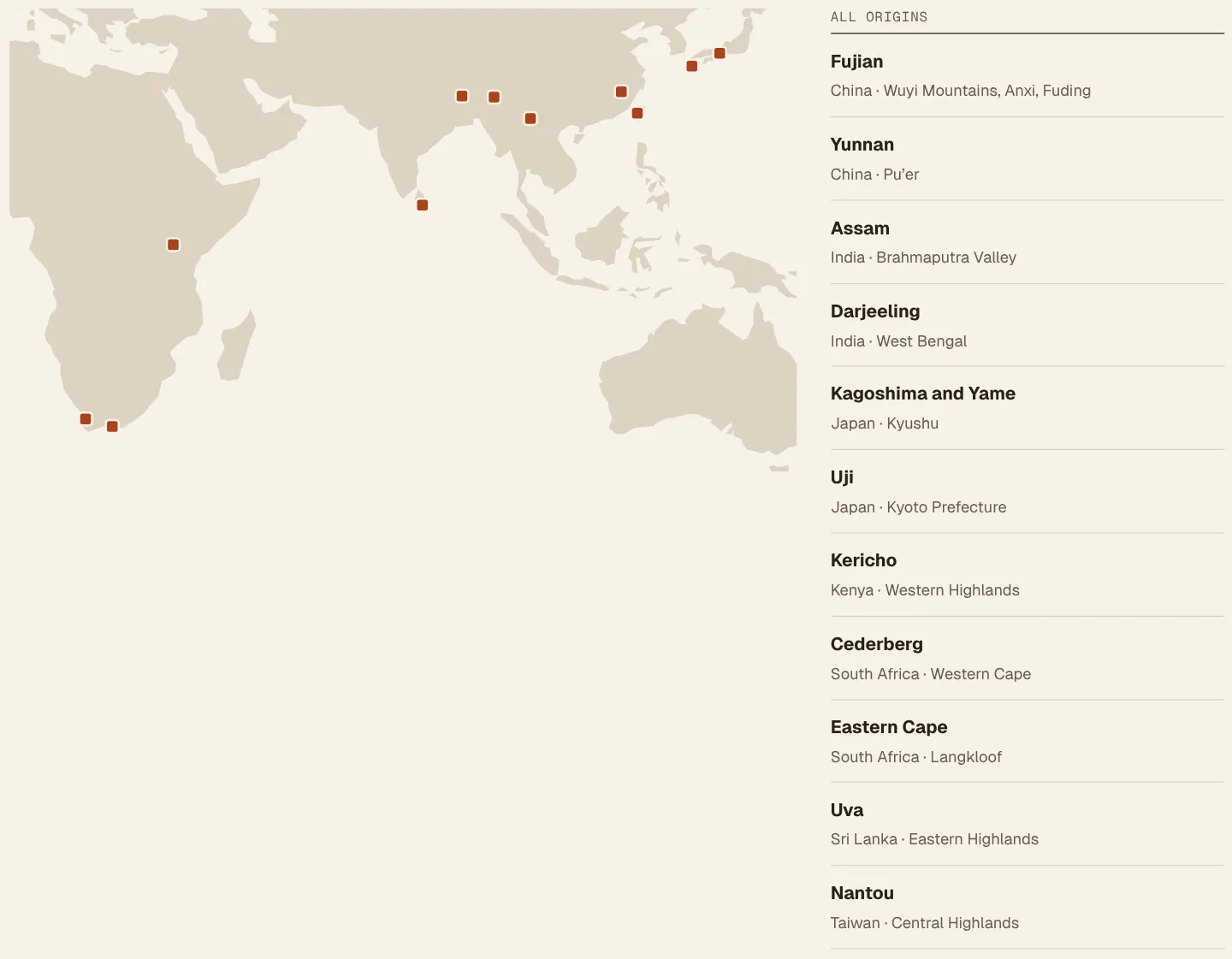
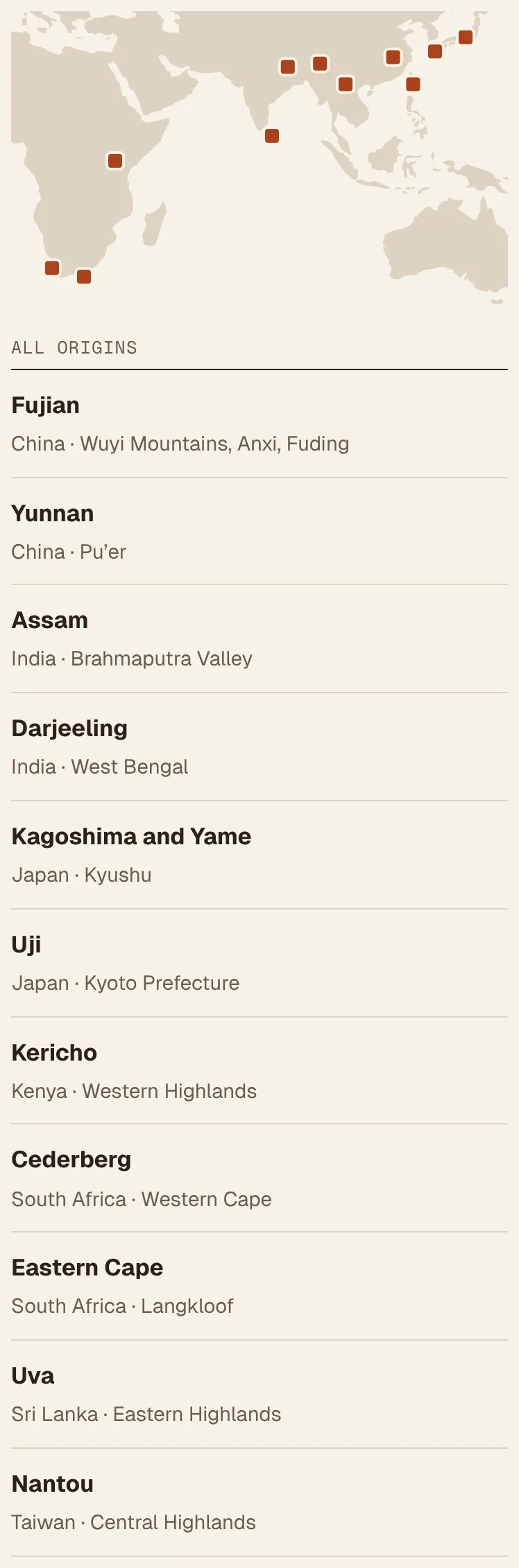 (Show larger)
Example from the demo store Kessel & Blatt.
Where do I find it?
- Online Store
- Themes
- Customize
- Choose the page at the top: “Home page”
- Add block
- Ingredients
- Origin map
How to set it up
Origin map
Shown with default values. Fields that only appear after another setting is changed are folded away below.
Shows metaobjects of type “origin” as points on a map and as a list. A click opens the detail card with text and products. Fields: see the theme documentation, “Origin map”.
Only this category
empty
Optional. Only shows entries whose “category” field has exactly this value, e.g. “Tea” (not case-sensitive). Empty: all entries.
Map area
Default: Automatic (around all points)
3 options
- Automatic (around all points)
- World
- Europe
Automatic: map of Europe if all points are in Europe, otherwise world map, cropped to the points.
Layout
Default: List next to the map
2 options
- List next to the map
- List below the map
Next to the map from about 750 px block width, below it on narrower screens.
Map
Point color
Default: Scheme: accent
5 options
- Scheme: accent
- Scheme: text
- Brand color: accent 1
- Brand color: accent 2
- Brand color: success / seal
Land color
Default: Scheme: line
3 options
- Scheme: line
- Scheme: media background
- Scheme: selection
Detail card
Detail card heading
Default: H3 – Subsection
4 options
- H2 – Section
- H3 – Subsection
- H4 – Minor subsection
- Normal text
Show image
Default: On
Show products
Default: On
Tips
- “Only this category” shows only entries with that value, e.g. “Tea”.
- From about 750 px wide the list sits next to the map, narrower below it.