Info pop-up
A link or button opens a window, e.g. with a size chart or dosage table.
What it looks like
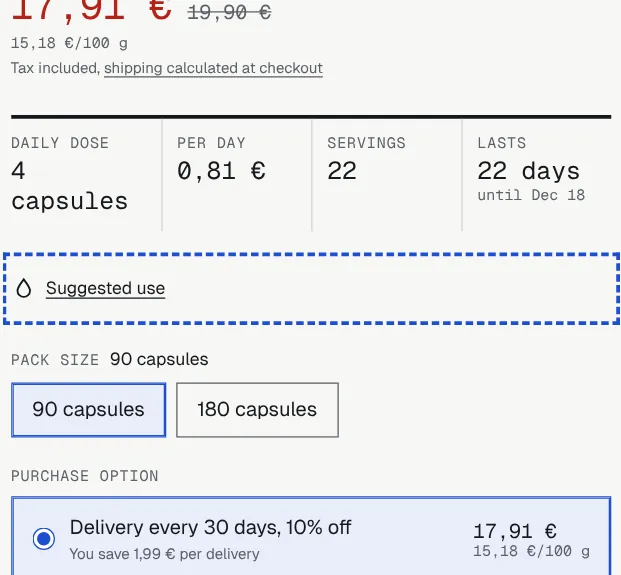
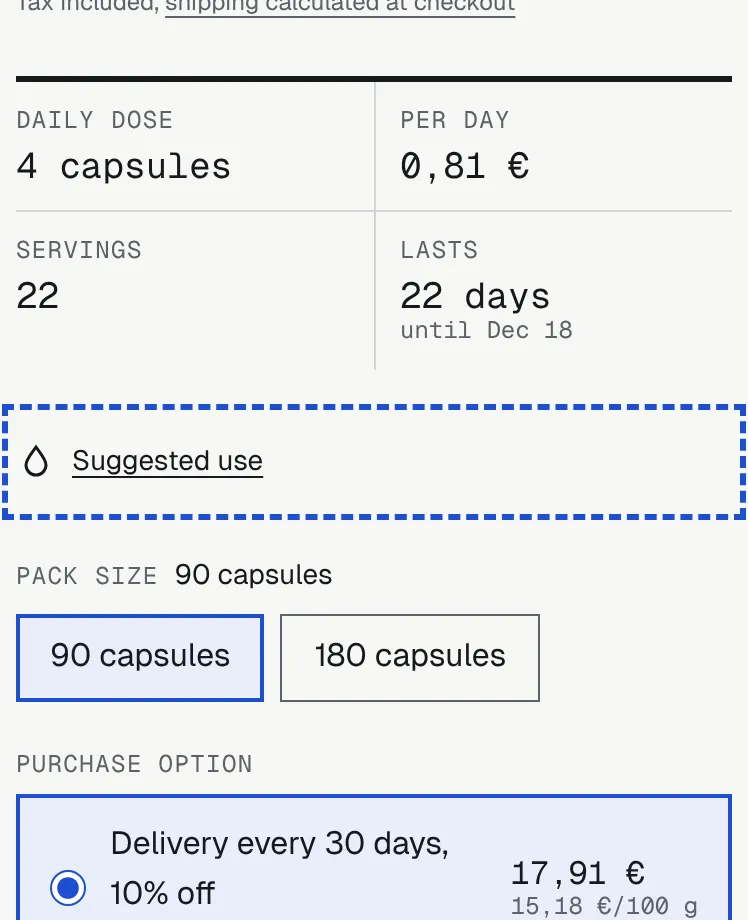 (Show larger)
Example from the demo store Nordform.
Where do I find it?
- Online Store
- Themes
- Customize
- Choose the page at the top: “Products › Default product”
- Add block
- Collapsibles and tabs
- Info pop-up
How to set it up
Info pop-up
Shown with default values. Fields that only appear after another setting is changed are folded away below.
Type
4 options
- General
- Dosage table
- Size chart
- Table
Sets the label and icon when no custom text is entered below.
Label
Text of the link or button. Empty = name of the type (e.g. “Size chart”) in the store language.
Window title
Empty = label.
Appearance
Style
2 options
- Text link
- Button
Show icon
Content
Source
3 options
- Text
- Page
- Product metafield
Text
Text in double square brackets is highlighted, e.g. [[refill]].
Only shown when “Source” is “Text”.
Page
With the source “Page”. Tables in the page content appear as a data table in the window – suited to size, dosage or feeding tables.
More fields when “Source” is “Product metafield” (2)
Content
Metafield (namespace.key)
Product metafield of type rich text, multi-line text, page, file (image) or metaobject, e.g. custom.dosage_table.
Metaobject field
Metaobject references only: key of the field with the content (rich text, text or image).
Tips
- The content comes from text, a page or a product metafield.
- Tables from a page appear as a data table in the window.