Collection list
Collections as tiles with an image, e.g. on the home page.
What it looks like
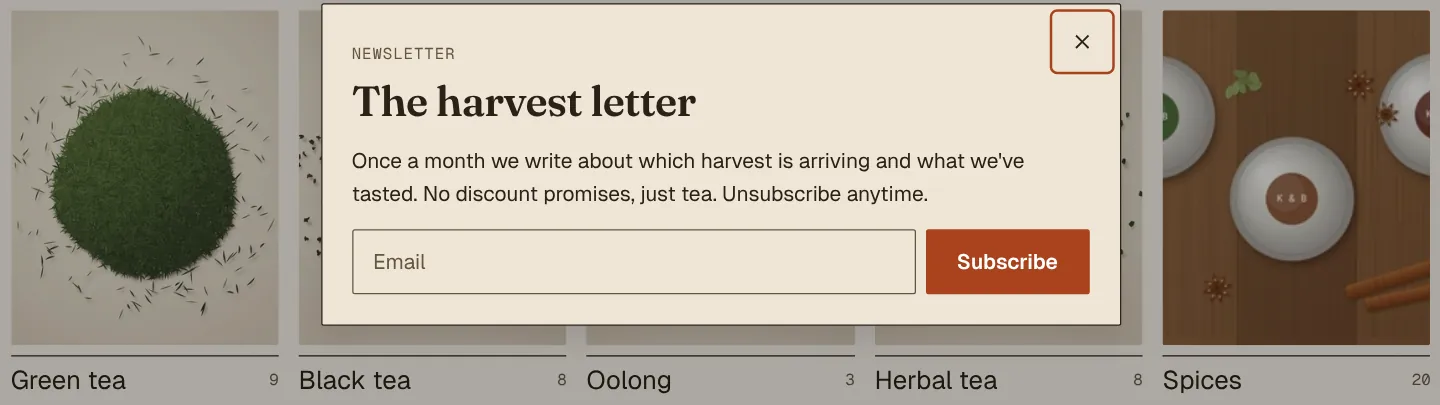
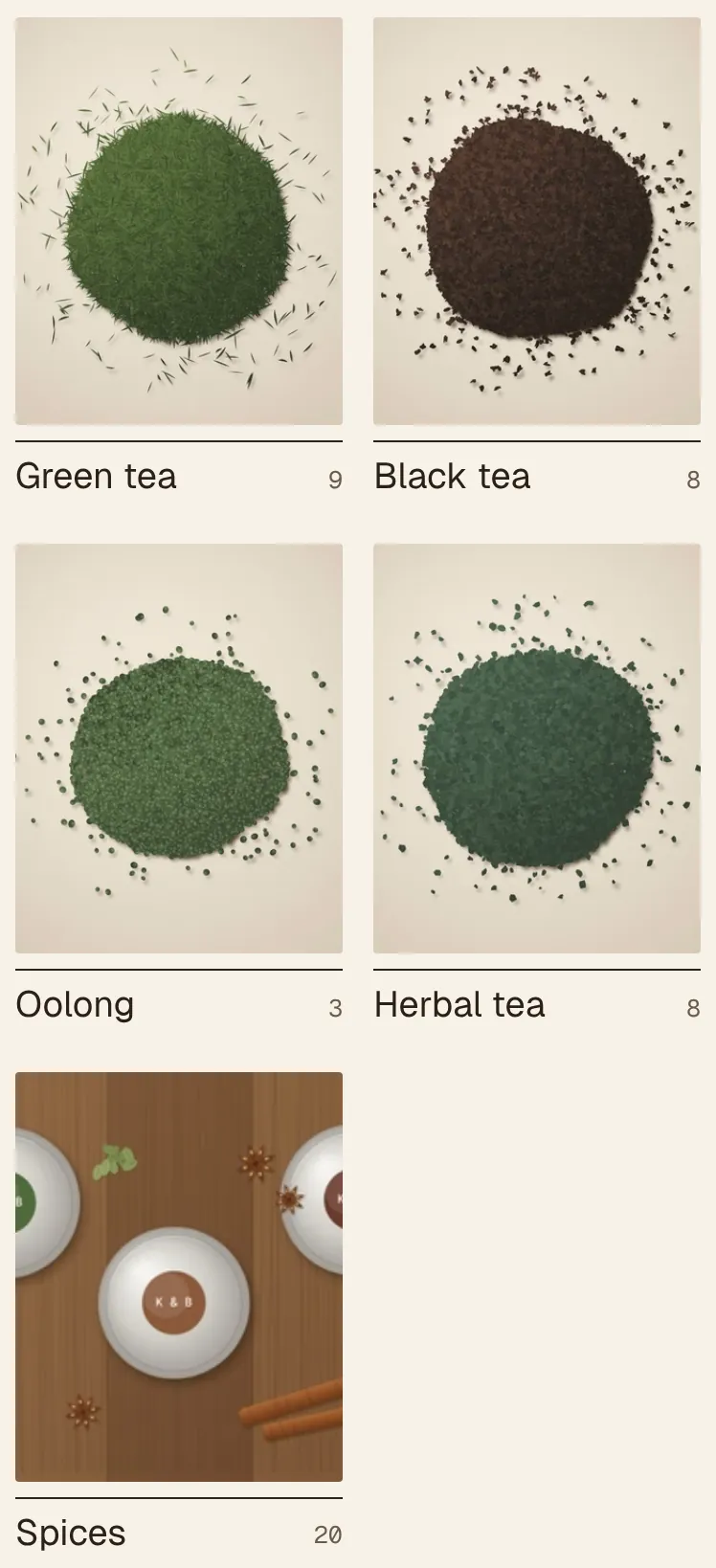 (Show larger)
Marked in the picture
The numbers in the computer picture show where each setting appears.
- 1 = Collections
Example from the demo store Kessel & Blatt.
Where do I find it?
- Online Store
- Themes
- Customize
- Choose the page at the top: “Home page”
- Add block
- Products and collections
- Collection list
How to set it up
Collection list
Shown with default values. Fields that only appear after another setting is changed are folded away below.
Heading
Text in double square brackets is highlighted, e.g. [[refill]].
Marker 1 Collections
Leave empty to show all collections with products.
Maximum number
On the All collections page without a selection: collections per page, with page navigation.
Columns on large screens
Image aspect ratio
3 options
- 1 : 1
- 4 : 5
- 3 : 2
Image fit
2 options
- Show whole image
- Fill frame (crop)
“Show whole image” crops nothing; “Fill frame” suits photos with their own background.
Image
2 options
- Collection image
- First product
“First product” shows the main image of the first product in the collection’s sort order, consistent even when collection images are mood shots. If an image is missing, the other one is used.
More fields when “Heading” is filled in (1)
Use as page title (H1)
Tips
- Leave “Collections” empty to show all collections with products.
- For photos with their own background, “Fill frame (crop)” fits better than “Show whole image”.