Build a set
Customers choose several products from a collection and add them to the cart together.
What it looks like
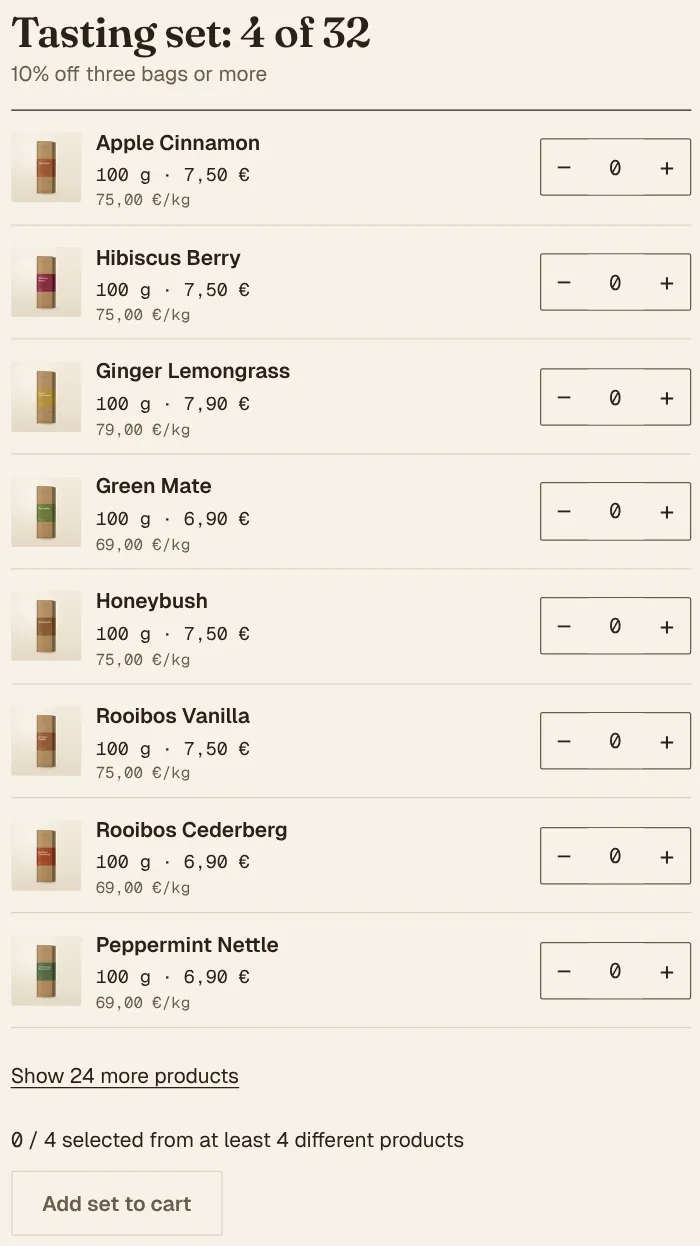
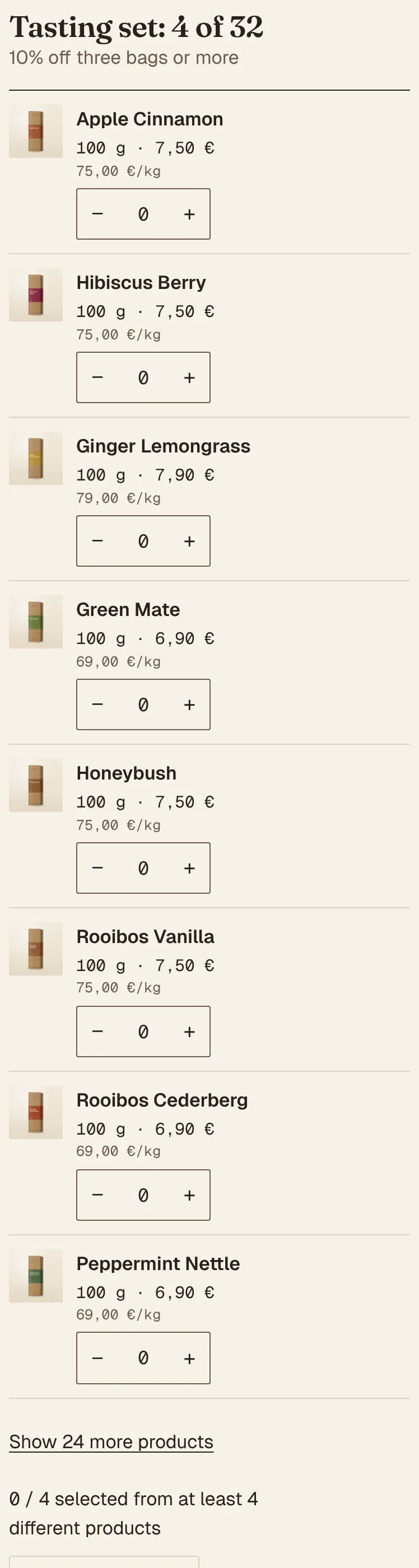 (Show larger)
Marked in the picture
The numbers in the computer picture show where each setting appears.
- 1 = Heading
Example from the demo store Kessel & Blatt.
Where do I find it?
- Online Store
- Themes
- Customize
- Choose the page at the top: “Home page”
- Add block
- Products and collections
- Build a set
How to set it up
Build a set
Shown with default values. Fields that only appear after another setting is changed are folded away below.
Collection
Variant
3 options
- Customer chooses
- First available variant
- Variant with option value
Marker 1 Heading
Text in double square brackets is highlighted, e.g. [[refill]].
Offer text
Describe the discount you set up as an automatic discount in Shopify. Text in double square brackets is highlighted, e.g. [[refill]].
Set rules
Minimum quantity in the set (pieces)
Minimum number of different products
Prevents reaching the minimum with a single product. Match your discount rule in Shopify.
Only shown when “Minimum quantity in the set (pieces)” > “1”.
Maximum quantity per product (pieces)
More fields when “Collection” is filled in (2)
Number of products
Up to 50 available products of the collection.
Visible
More products appear under “Show more”.
More fields when “Variant” is “Variant with option value” (1)
Option value
E.g. 100 g. Products without this value use the first available variant; if the value is sold out, the product is left out.
Tips
- Create the discount in Shopify as an automatic discount. The “Offer text” only describes it.
- “Visible” sets how many products show at once. The rest are under “Show more”.
- “Minimum number of different products” stops customers from reaching the minimum with one product.