Timeline
Steps with a point in time, e.g. how an order or a subscription works.
What it looks like
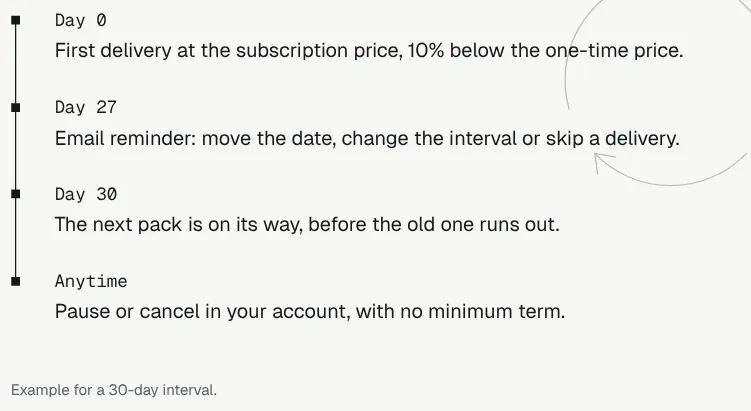
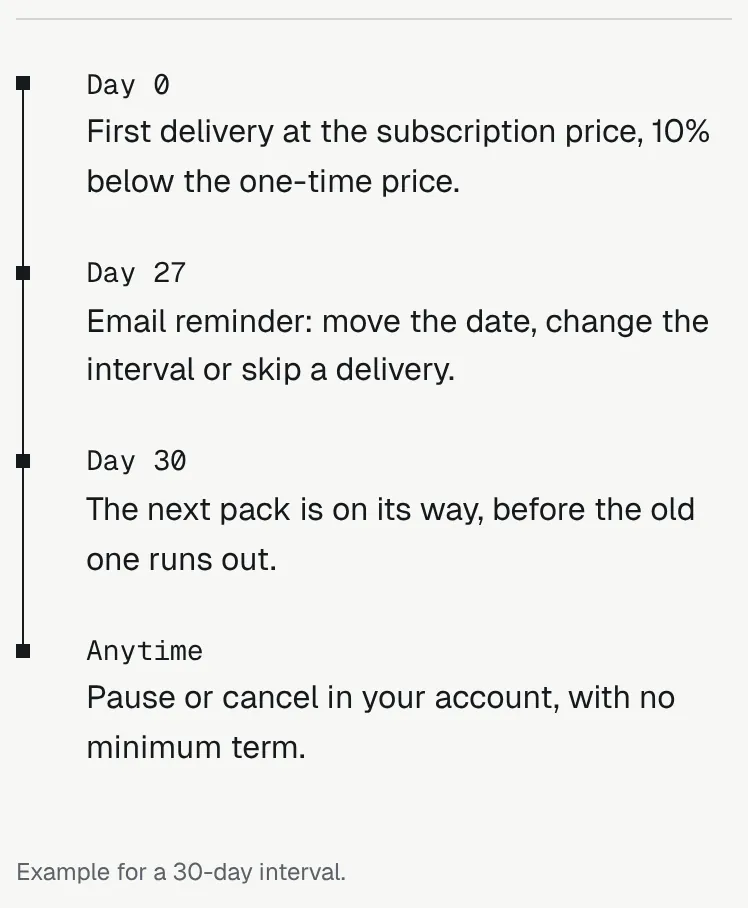 (Show larger)
Example from the demo store Nordform.
Where do I find it?
- Online Store
- Themes
- Customize
- Choose the page at the top: “Home page”
- Add block
- Benefits and comparison
- Timeline
How to set it up
Timeline
Shown with default values. Fields that only appear after another setting is changed are folded away below.
Heading
Default: What happens next
Text in double square brackets is highlighted, e.g. [[refill]].
Heading level (SEO)
Default: H2 – Section
4 options
- H2 – Section
- H3 – Subsection
- H4 – Minor subsection
- Normal text
Only shown when “Heading” is filled in.
Note
empty
Optional, e.g. “Deliveries on working days”. Text in double square brackets is highlighted, e.g. [[refill]].
Can contain other blocks (for example heading, text, button).
Tips
- Use “Note” to add a short line, e.g. “Deliveries on working days”.