Quote
A quote with name and role, e.g. a customer testimonial.
What it looks like
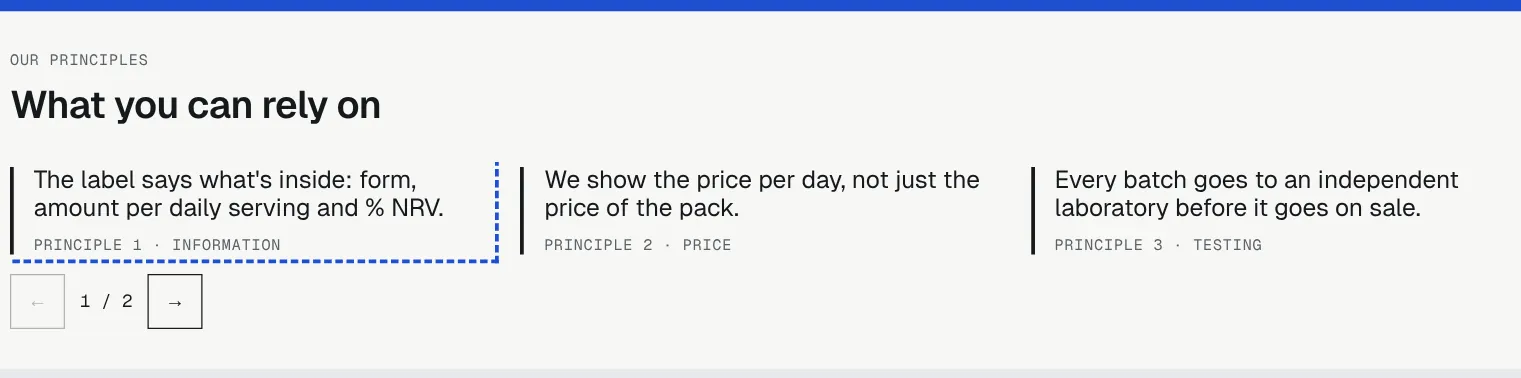
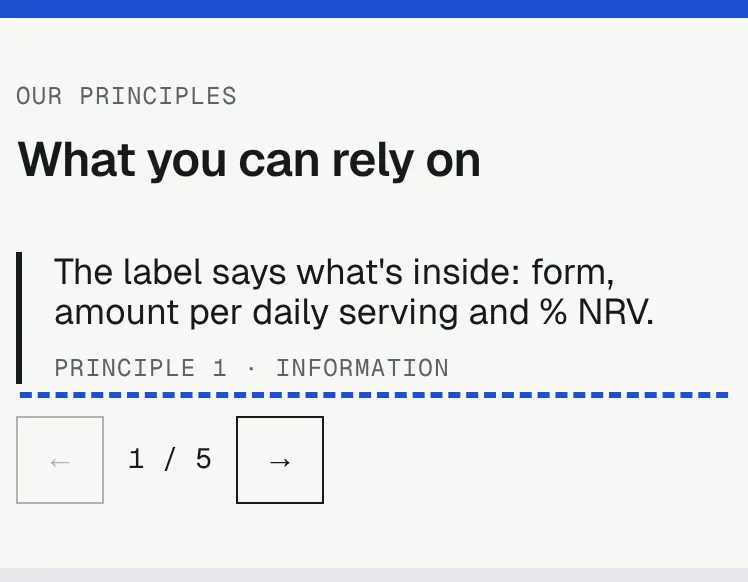 (Show larger)
Marked in the picture
The numbers in the computer picture show where each setting appears.
- 1 = Quote
- 2 = Person’s name
Example from the demo store Nordform.
Where do I find it?
- Online Store
- Themes
- Customize
- Choose the page at the top: “Home page”
- Add block
- Text
- Quote
How to set it up
Quote
Shown with default values. Fields that only appear after another setting is changed are folded away below.
Marker 1 Quote
Default: Fast delivery and exactly as described – I’ll order again.
Text in double square brackets is highlighted, e.g. [[refill]].
Marker 2 Person’s name
Customer name
Text in double square brackets is highlighted, e.g. [[refill]].
Appearance
Font size
Default: Default
5 options
- Default
- Small
- Medium
- Large
- Extra large
“Default” uses the setting of the carousel the quote is in, otherwise M and the weight of the heading font.
Font weight
Default: Default
3 options
- Default
- Regular
- Bold
More fields when “Person’s name” is filled in (1)
Role or place
empty
Text in double square brackets is highlighted, e.g. [[refill]].
Tips
- Without “Person’s name” the quote appears without a name line.
- In a carousel, “Default” takes the carousel’s font settings.