Events
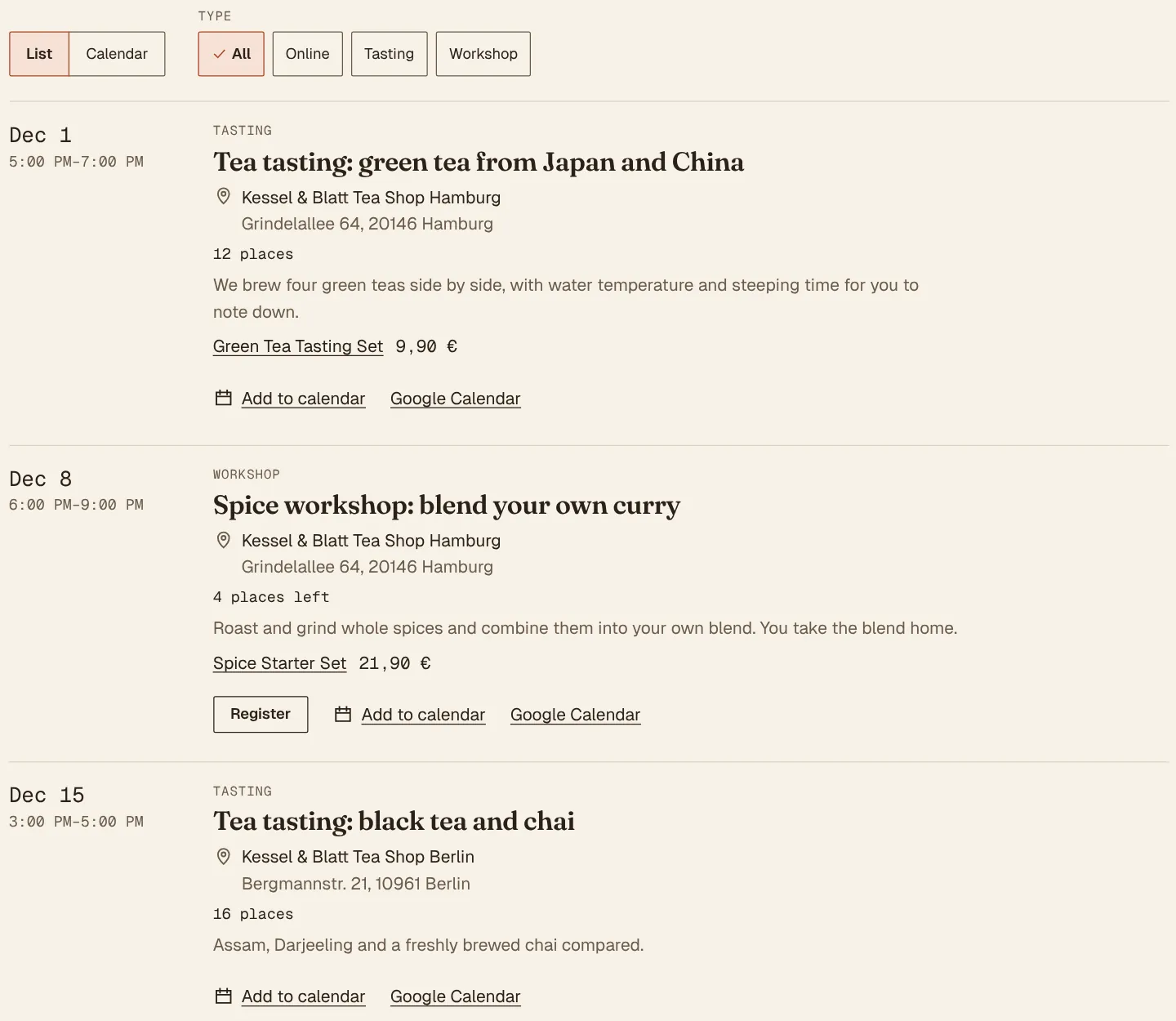
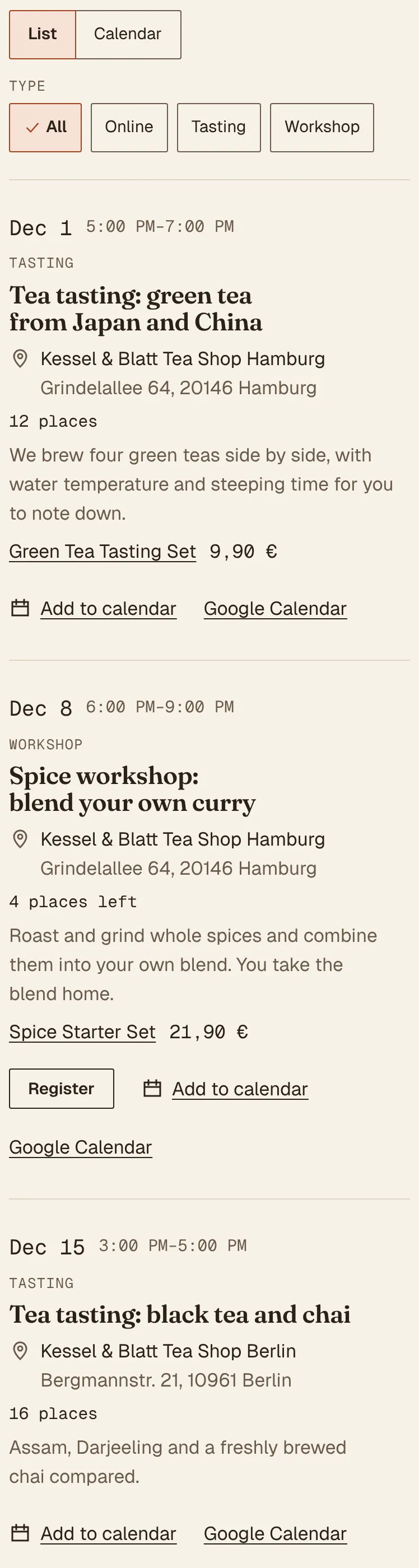
Events as a list or calendar, e.g. tastings or workshops.
What it looks like
 (Show larger)
Example from the demo store Kessel & Blatt.
Where do I find it?
- Online Store
- Themes
- Customize
- Choose the page at the top: “Pages › Default page”
- Add block
- Events
- Events
How to set it up
Events
Shown with default values. Fields that only appear after another setting is changed are folded away below.
Shows upcoming metaobjects of the type “Event” (event), sorted by start; past events disappear on their own. Definition and fields: theme documentation, “Events”. Up to 250 entries.
Heading level of event titles
4 options
- H2 – Section
- H3 – Subsection
- H4 – Minor subsection
- Normal text
View
Initial view
2 options
- List
- Month calendar
Without JavaScript, the list is always shown.
Show list/calendar switch
Events in the list
Further events appear with “Show all events”. The calendar always shows all of them.
Only this type
5 options
- All types
- Tasting
- Workshop
- Refill day
- Online
Filter by type
Appears when the events have at least two types.
Only shown when “Only this type” is “All types”.
Event content
Image
Location
Places
Description
Linked product (e.g. ticket)
“Add to calendar”
Downloads an .ics file for Apple Calendar, Outlook and Google Calendar. Without JavaScript, the link opens a Google Calendar template.
Message without upcoming events
Shows “No events right now”. When turned off, the block is hidden.
Structured data (Event)
Helps search engines recognize the date, location and tickets of each event.
Tips
- Without upcoming events the block shows “No events right now” – or disappears if you turn that off.
- “Add to calendar” downloads a file for Apple Calendar, Outlook and Google Calendar.