Counter bar
Large numbers with a label, e.g. “48 h · shipping time”.
What it looks like
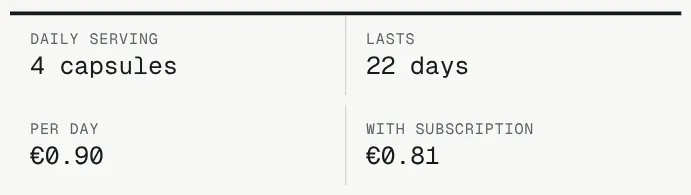
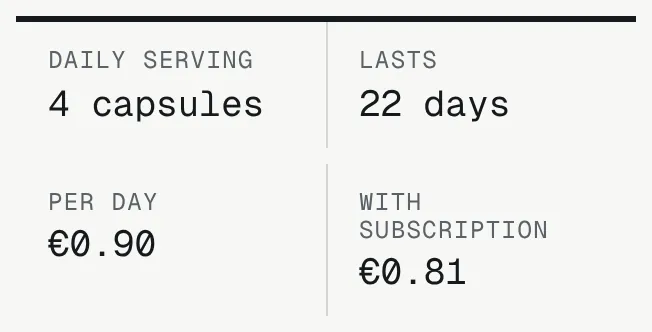 (Show larger)
Example from the demo store Nordform.
Where do I find it?
- Online Store
- Themes
- Customize
- Choose the page at the top: “Home page”
- Add block
- Benefits and comparison
- Counter bar
How to set it up
Counter bar
Shown with default values. Fields that only appear after another setting is changed are folded away below.
Key figures without a product, e.g. customers, shipping time or years in business. Values in the entries below.
Value size
Default: Medium
4 options
- Small (like key figures)
- Medium
- Large
- Extra large
Label
Default: Below the value
2 options
- Above the value
- Below the value
Match group alignment
Default: On
Uses the alignment of the group or section. Turn off to choose an alignment of its own. Learn more
Columns on small screens
Default: 2
2 options
- 1
- 2
Line on top
Default: On
Count up when visible
Default: On
Only below the first screen, never with “reduce motion”. Without JavaScript the final value is shown.
More fields when “Match group alignment” is off (1)
Alignment
Default: Start
2 options
- Start
- Center
Can contain other blocks (for example heading, text, button).
Tips
- Add one “Counter” sub-block per number.
- “Count up when visible” only works further down the page and never with reduced motion.